Quiz Settings
Open the app at http://localhost:8080, http://your_ip:8080, or http://your_domain to reach the settings panel.
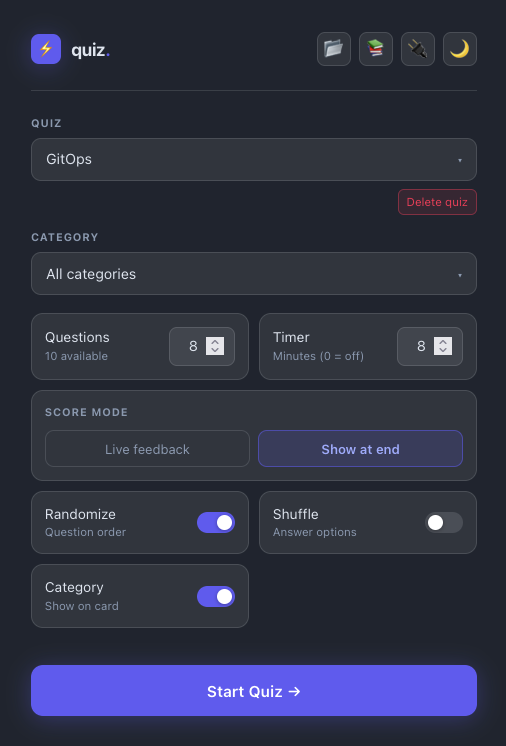
① Quiz
The dropdown lists every question bank currently in the database. Select the one you want to practise.
Use the 📂 Upload YAML icon (top-right) to add a new question bank — the YAML file defines the quiz name, questions, choices, and answers. See Question Format for the file structure.
The ↺ icon (next to the Quiz label) refreshes the question counts for the current quiz without reloading the page. Use this if the counts look stale after a quiz session where you starred or disabled questions.
Why counts can look stale
When you star (⭐) or disable (⊘) a question during a quiz, the change is saved to the database immediately. However, the counts on the picker screen are only recalculated when the picker loads or when you trigger a bulk action. If you switch back to the picker straight after a quiz and the "X available" number looks wrong, click ↺ to sync it — no page reload needed.
Three bulk actions appear below the dropdown (hidden when not applicable):
| Button | What it does |
|---|---|
| ↩ Re-enable all disabled | Clears the disabled flag on every question in this quiz |
| ★ Unstar all | Clears the important flag on every question in this quiz |
| Delete quiz | Permanently removes the quiz and all its score history |
② Category
Filter questions by topic within the selected quiz. Only questions tagged with that category will be included in the session.
| Option | Behaviour |
|---|---|
| All categories | Every question in the quiz is eligible |
| Specific category | Only questions with that tag are included |
③ Questions
How many questions to ask. The field shows how many are available for the current quiz + category combination and is capped automatically — you cannot ask for more questions than exist.
④ Timer
Countdown timer for the whole session, in minutes. Appears in the right sidebar during the quiz and shrinks as time runs out — turning red and pulsing when under 20% remains. The session auto-submits when time runs out.
Set to 0 to disable. Defaults to the number of questions selected (one minute per question).
Questions to include
Controls which questions are eligible for the session.
| Option | Questions included |
|---|---|
| All | Every question in the quiz (enabled + disabled + important) |
| Enabled only | Only questions not marked as "Never show again" (default) |
| Disabled only | Only questions you have hidden — useful for a focused re-review |
| Important only | Only questions you have starred (⭐) |
The Questions count field updates automatically when you change this filter or the category. The maximum you can request is capped to however many questions match the current filter + category combination.
⑤ Score mode
Controls when correct/wrong feedback is shown.
| Mode | What happens after you answer |
|---|---|
| Live feedback | The correct answer turns green ✅, your wrong pick turns red ❌, and the explanation is shown immediately |
| Show at end | Your pick is highlighted in neutral (no colour). No right/wrong revealed. All feedback is deferred to the results screen |
Use Live feedback to learn as you go. Use Show at end to simulate a real exam with no hints mid-session.
⑥ Randomize — Question order
When on (blue), the question order is shuffled at the start of each session. Each session is a different order.
When off, questions appear in the same order as the YAML file.
⑦ Shuffle — Answer options
When on, the A/B/C/D answer choices are reshuffled for every question, preventing muscle memory (e.g. "the answer is always B").
When off, choices appear in the original order from the YAML file.
⑧ Category — Show on card
When on (blue), the question's category label (e.g. Networking, IAM) is shown at the top of each question card.
When off, category labels are hidden — useful for practising without any topic hints.
Top-right icons
| Icon | Action |
|---|---|
| 📂 | Upload a YAML question bank |
| 📚 | Open the documentation site |
| 🔌 | Open the Swagger API docs |
| 🌙 / ☀️ | Toggle dark / light mode |
Keyboard shortcuts
During the quiz:
| Key | Action |
|---|---|
↑ / ↓ |
Move highlight between answer choices |
A–D or 1–4 |
Jump directly to that choice |
Enter |
Confirm highlighted choice / advance |
← / → |
Previous / next question |
On the results screen:
| Key | Action |
|---|---|
↑ / ↓ |
Scroll through the question review list |
← / → |
Cycle between footer buttons |
Enter |
Open/close review item or activate button |